How to Add Links to Slides and Layers
Adding clickable links to your slides or specific elements (layers) in Slider Revolution helps drive traffic to other pages, products, or external sites. Here's how to easily add links in your Shopify Slider Revolution app.
🎥 Video Guide:
How to Edit Existing Links
Select the layer
that has the link on it you wish to edit. For example, you may wish to edit the link on a button such as a social media icon:
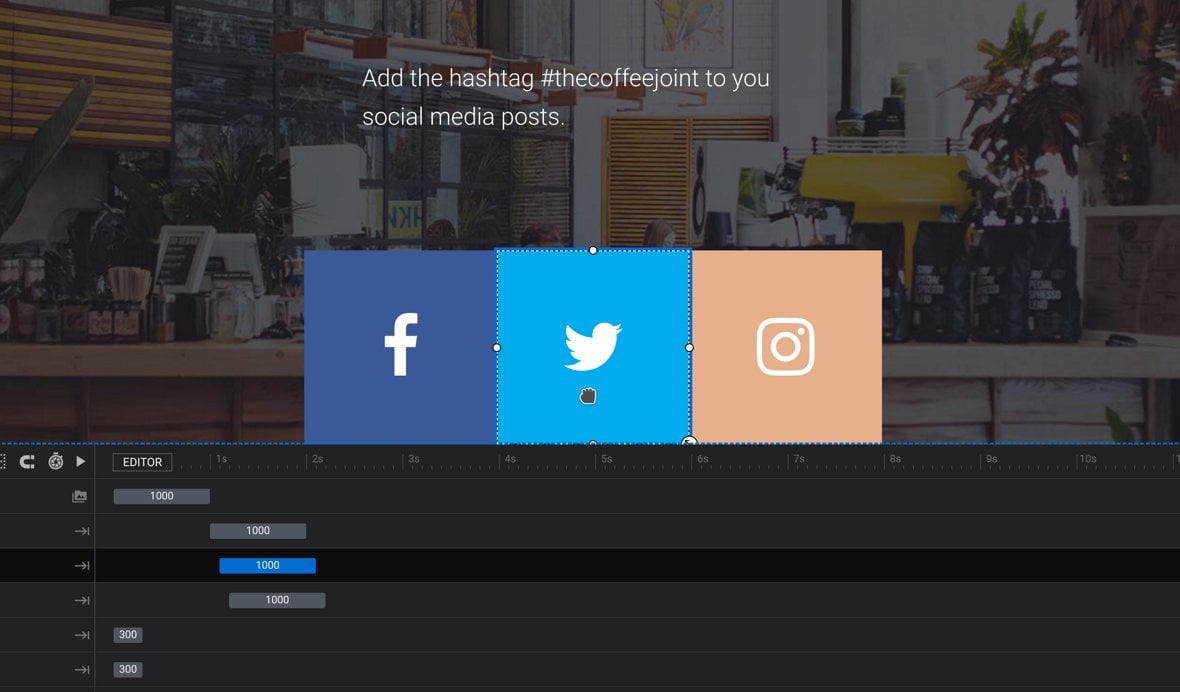
Once the layer is selected, the Layer Options tab will automatically open in the sidebar, under which you can click the Actions button:
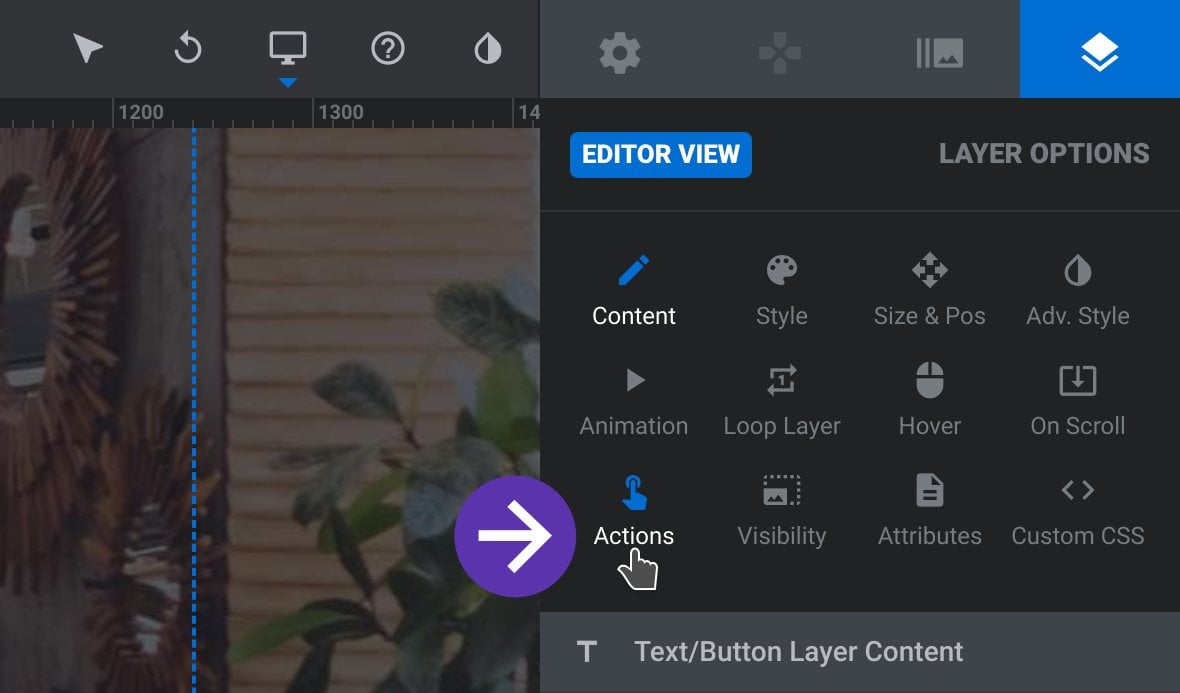
The Actions dialogue box will automatically open:
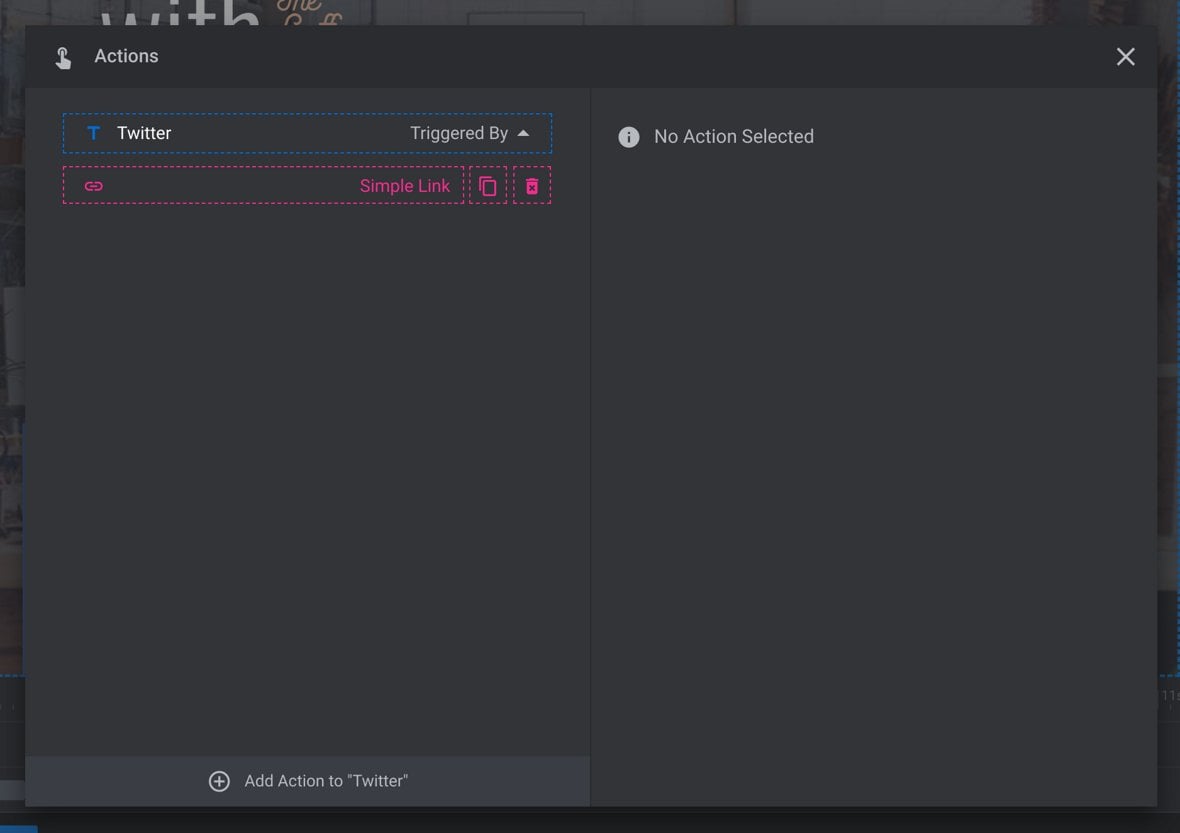
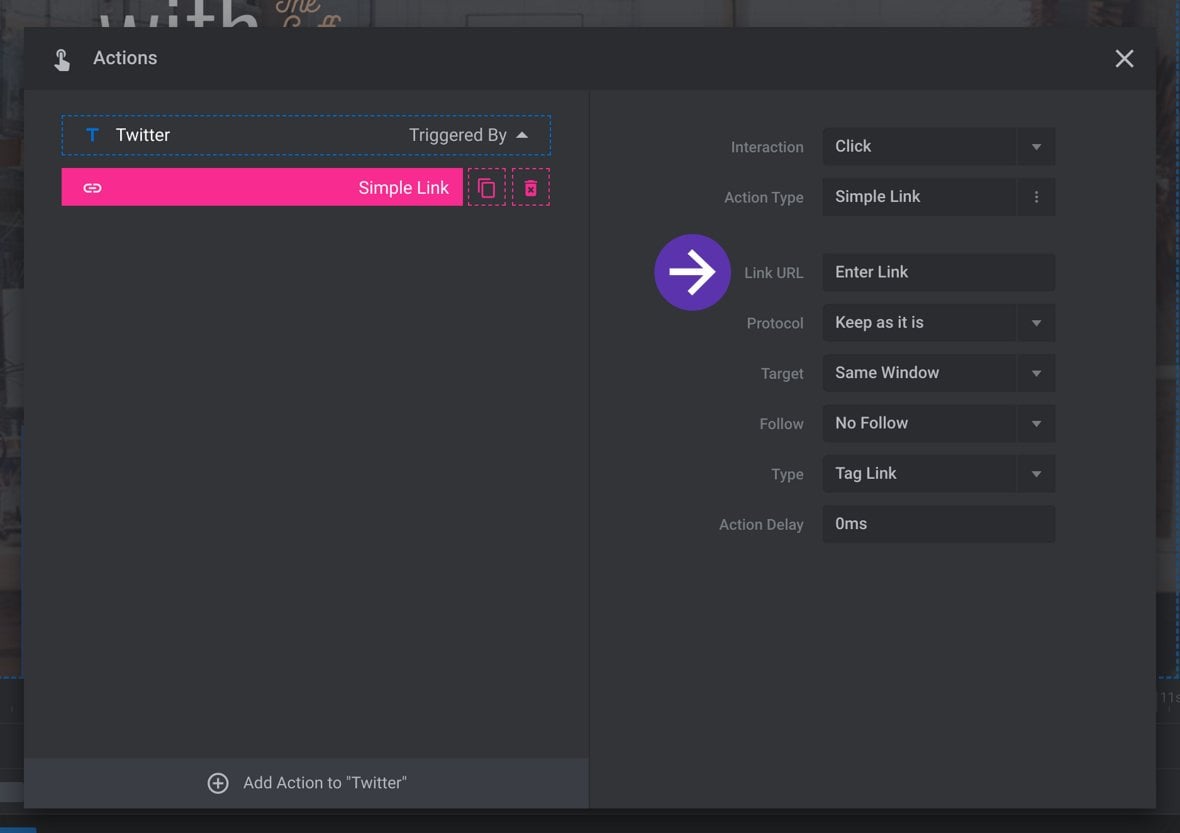
On the left side of the Actions dialogue box click the pink item labeled Simple Link. This will make a series of fields appear on the right side of the dialogue box. To replace the link, edit the contents of the field labeled Link URL.
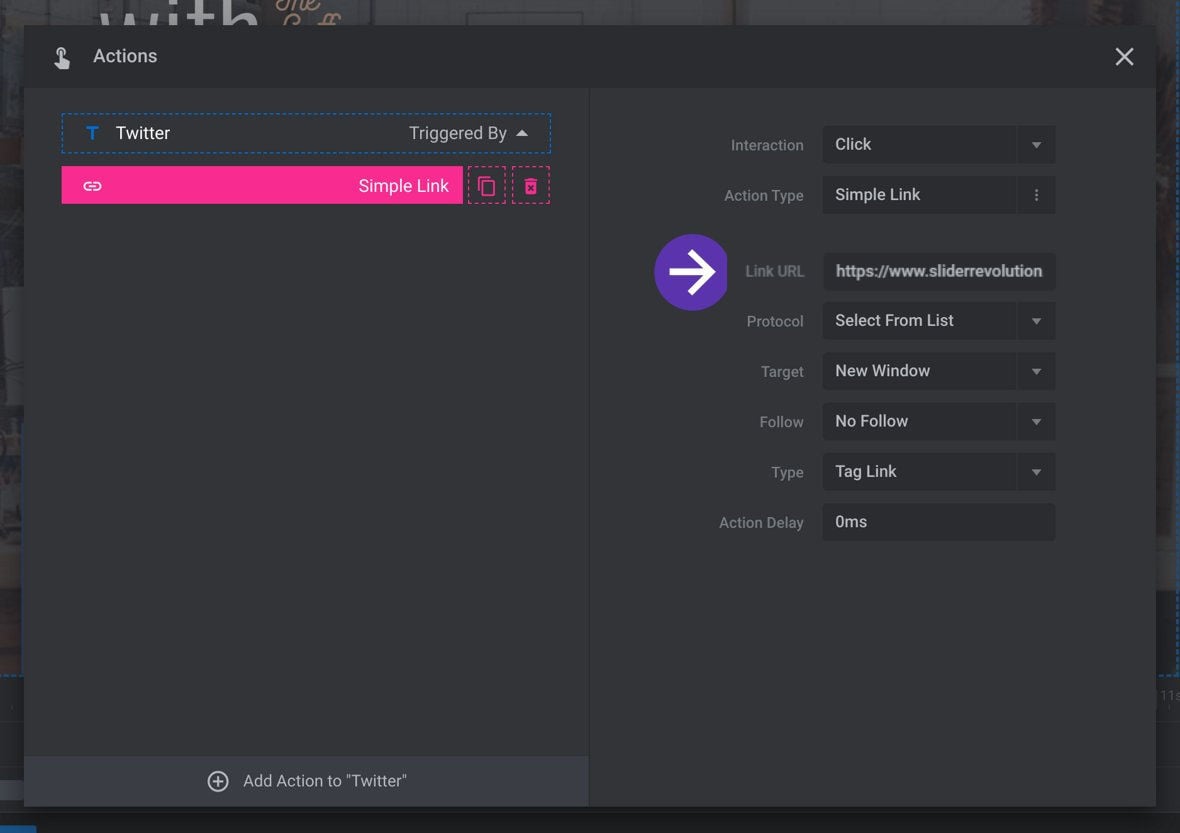
Once your new link has been entered, click the “X” button at the top right to close the dialogue box. The change to the link you made will be applied automatically.
How to Add a New Link
Select the layer you want to apply a link to, then in the Layer Options tab click the Actions button to open the Actions dialogue box.
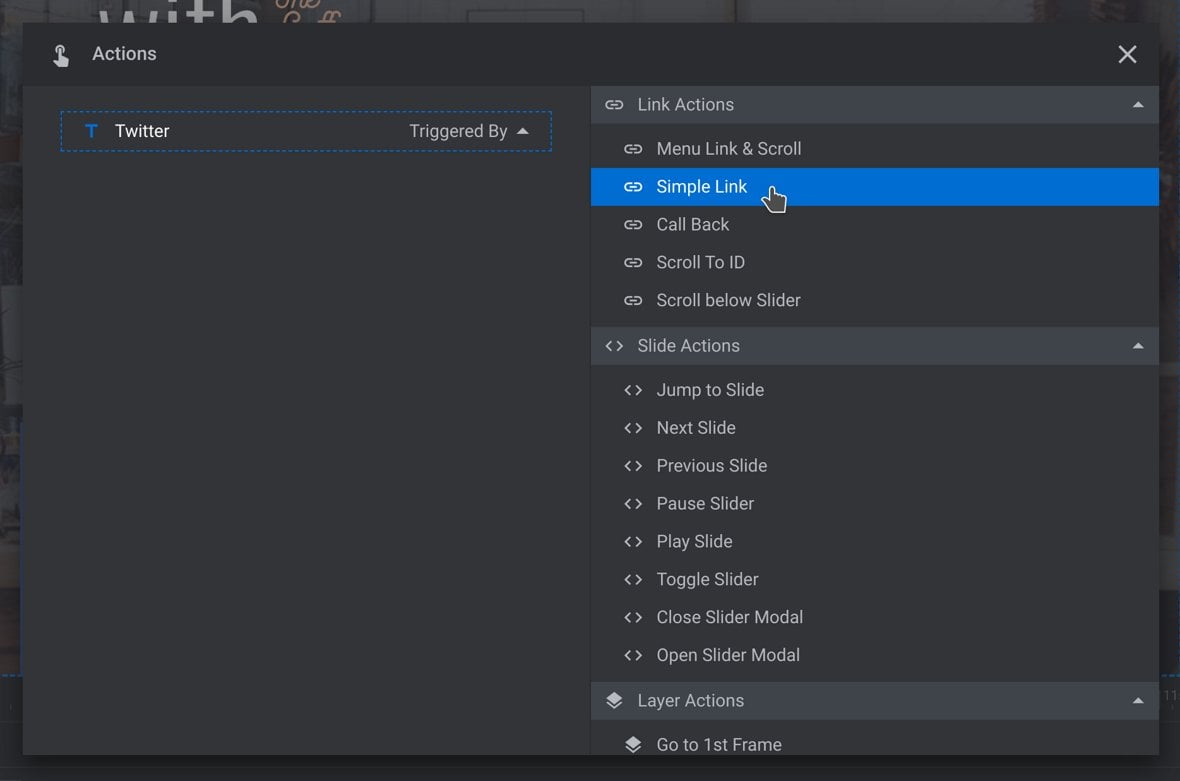
Under Link Actions on the right, click the Simple Link button:
This will automatically add and open a new Simple Link item. Enter your link in the field labeled Link URL:
Click the “X” button at the top right to close the dialogue box. Your new link will be applied automatically.
Updated on: 15/05/2025
Thank you!